Want to work for VMware IT in Colorado Springs, CO? We need a new Sr. Lab Engineer. Looking for someone with good VMware knowledge and solid networking and storage skills. Come join us! http://bit.ly/TUitg5
Wednesday, October 17, 2012

Sunday, September 30, 2012
A Free People's Suicide - Dr. Os Guinness
One of the things that makes me scratch my head in amazement and concern is that we as a people have no concept of history and especially US Government history. We as the American People spend our hours watching mindless TV and are missing out on all kinds of fantastic books that are filled with so many lessons learned in blood over hundreds and thousands of historical years that we have deliberately ignored. It sounds great except for that small fact that we are a government of the people and for the people. If the people be clueless, then our outlook is not so bright...
One other thing that concerns me very much more than that though is that we are so quick to support things and people who have very obvious ethical issues with the excuse of "oh, a person's personal values don't matter in government". I would strongly argue the exact opposite is true and this very thing is the primary reason that we are in this difficult position today and the much worse position coming in the future. If values and integrity are important in average life, how much more in the public square and government?
That raises the question: do we really believe that integrity is important in one's personal life? I would argue that in the general public the answer is a resounding "no". It is no surprise therefore that we have no integrity in government if it is a value no longer treasured and fought for in the average American's life. How quick we are to blame "Washington" for our troubles when I submit that it is a problem rooted in our society in general with the symptoms coming to a head in DC.
Do we really think that we are immune from the problems that led to the downfall of all the other great empires throughout history? Do we really think that we are technologically advanced enough to prevent that?
Here is a great speech by Dr. Os Guinness on the current issues faced in our country at the latest Socrates in the City. Please watch and ponder what he has to say.
Dr. Os Guinness: "A Free People's Suicide" from Socrates in the City on Vimeo.
One other thing that concerns me very much more than that though is that we are so quick to support things and people who have very obvious ethical issues with the excuse of "oh, a person's personal values don't matter in government". I would strongly argue the exact opposite is true and this very thing is the primary reason that we are in this difficult position today and the much worse position coming in the future. If values and integrity are important in average life, how much more in the public square and government?
That raises the question: do we really believe that integrity is important in one's personal life? I would argue that in the general public the answer is a resounding "no". It is no surprise therefore that we have no integrity in government if it is a value no longer treasured and fought for in the average American's life. How quick we are to blame "Washington" for our troubles when I submit that it is a problem rooted in our society in general with the symptoms coming to a head in DC.
Do we really think that we are immune from the problems that led to the downfall of all the other great empires throughout history? Do we really think that we are technologically advanced enough to prevent that?
Here is a great speech by Dr. Os Guinness on the current issues faced in our country at the latest Socrates in the City. Please watch and ponder what he has to say.
Dr. Os Guinness: "A Free People's Suicide" from Socrates in the City on Vimeo.
Thursday, September 27, 2012
VMware vCenter Configuration Manager–Auditing and Changing Local Accounts
One of the many useful features of VMware vCM is that you can audit local accounts for security risks and then through various actions remediate those risks. In this example I have discovered on my Windows machines that I have a single admin account that does not have the “Password Required” attribute set and want to disable the account. To get to this point I have collected “Accounts” data against my Windows machines.

Next I navigate to Security > Local Accounts and am greeted with the below graph. (Hint, you can skip the graph and go straight to the data grid if you hold down CTRL when you click on the “Local Accounts” button.) It is on this screen that I see that one of my admin accounts does not have a password enabled. Let’s click on it to get some more details.

Next I see all the information on the account. Also if you hover over that first icon on the left you will notice that it says the account is currently enabled. Not for long… Click on “Edit Properties”.

Your account is already pre-selected for change…

Select the Account Attribute…

… and say that you want it to be disabled…

Next run the action or schedule it for later.

Once that job completes we need to recollect from that machine to get the current status of the account information. To do that start a new collection and go grab the “Accounts” information.

Perfect, if you notice on the top graph 1 account now shows as disabled. Let’s drill into the admin account that does not require a password. Hopefully it will show up as disabled.

Looking at the first icon we see that it is indeed disabled. But let’s go one step further, lets use vCM to rename the account and change the password.

Next we go through the “Change Password” and “Rename Account” wizards and supply new values that we want. After the changes are complete and we recollect we can see that the password age is now 0 days, the account name has been changed and the account is disabled.

This little tutorial demonstrates a couple tasks that are really important and easily implemented.
1. Auditing Accounts (also includes password age, failed password attempts, date of last login)
2. Automatically changing passwords for Local Accounts (Yes, you can change multiple passwords at the same time.)
3. Renaming Local Accounts
Be pretty cool if you could do that all automatically right? Well, stay tuned for a later post on using vCM Compliance Rules to automate your compliance and remediation.
Tuesday, September 25, 2012
My Personal Quick Start Guide to Installing VMware vCM Prereqs
The complete and supported install guide for installing VMware vCenter Configuration Manager is located here but sometimes you just want a quick and simple install guide that covers most scenarios in a simple Single Tier install. At least I do for lab testing so here’s my quick version of the install guide. Be aware that it has been slimmed down by me for use in a test environment. If you are installing in a production environment please ignore this and follow the real guide located on the VMware website and hyperlinked above. Also this guide is not a complete step by step tutorial but more of a general roadmap pointing out highlights along the route. It is assumed that you have experience with IIS and SQL at a minimum. A lot of the settings can be left at the defaults and I won’t specify that, I’ll just stop at the important things to change.
1. Install Windows Server 2008 R2 SP2 Standard Edition
2. Join machine to your domain and make yourself a local admin.
3. Disable IE Enhanced Security for Administrators and disable the UAC for convenience.
4. Reboot and login as your domain account.
5. Request a machine certificate. I did this via AD and Certificates Snap-In in mmc.exe.
6. Install IIS with:
Common HTTP Features:

Configure a new instance with the below options installed.

Use the default instance and continue on. Next set the SQL Accounts to all use the “NT Authority\System” and set the SQL Server Agent to Automatic.
Next change the Authentication Mode to “Mixed Mode”, set a password and make sure to click on the “Add Current User” so that you are added as a SQL Administrator.

At this point complete the SQL install, patch it and you are ready to install vCM. Launch the installer and proceed through Foundation Checker. It should succeed:

At his point the hard part is over and the rest of the installer is stuff that is very specific to your environment. Once you complete the installer you are now ready to go. Have fun!
1. Install Windows Server 2008 R2 SP2 Standard Edition
2. Join machine to your domain and make yourself a local admin.
3. Disable IE Enhanced Security for Administrators and disable the UAC for convenience.
4. Reboot and login as your domain account.
5. Request a machine certificate. I did this via AD and Certificates Snap-In in mmc.exe.
6. Install IIS with:
Common HTTP Features:
1. Static Content
2. Dynamic Content
3. Directory Browsing
4. HTTP Errors
5. HTTP Redirection
Application Development:
1. ASP.NET2. .Net Extensibility3. ASP4. ISAPI Extensions5. ISAPI Filters6. Server Side Includes
Health and Diagnostics:
1. HTTP Logging2. Logging Tools3. Request Monitor4. Tracing
Security:
Just install them all.
Performance:
1. Static Content Compression2. Dynamic Content Compression
Management Tools:
1. IIS Management Console2. IIS Management Scripts and Tools
7. Configure IIS by going to IIS Manager and under the default website clicking on the “Advanced Settings” button on the right toolbar. From there you can change the “Connection Time-out” to 3600 seconds.

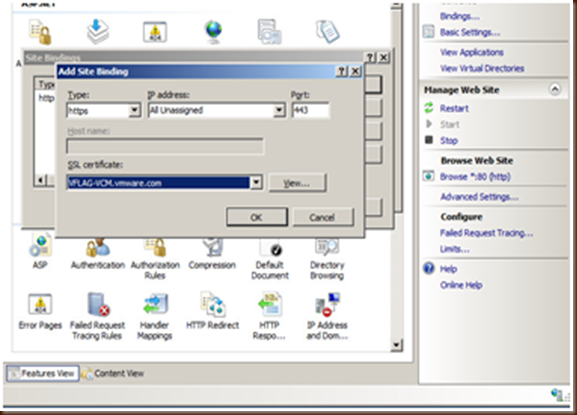
8. Next disable “Anonymous Authentication” and enable “Basic Authentication” under the Authentication settings on the Default Web Site. Also under “Bindings” add a HTTPS binding using your certificate.

9. Install SQLXML 4.0 SP1 x64.
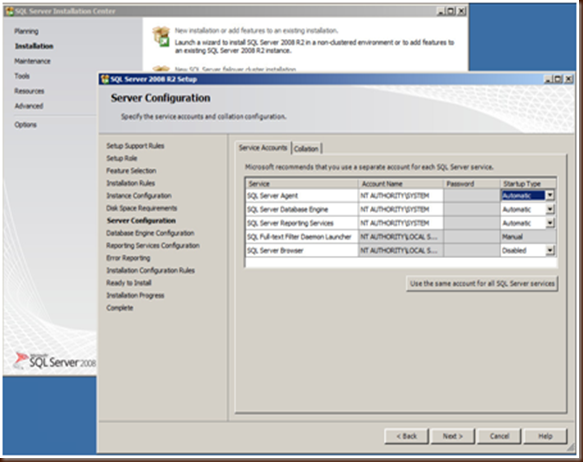
10. Install Microsoft SQL Server 2008 R2 x64. It will probably tell you when you start the installer that .Net needs enabled or the Windows Installer needs updated. Click yes and it will do this automatically behind the scenes.Configure a new instance with the below options installed.
1. Database Engine Services
2. Full-Text Search – optional
3. Reporting Services
4. Client Tools Connectivity
5. Management Tools – Basic
6. Management Tools – Complete

Use the default instance and continue on. Next set the SQL Accounts to all use the “NT Authority\System” and set the SQL Server Agent to Automatic.

Next change the Authentication Mode to “Mixed Mode”, set a password and make sure to click on the “Add Current User” so that you are added as a SQL Administrator.

At this point complete the SQL install, patch it and you are ready to install vCM. Launch the installer and proceed through Foundation Checker. It should succeed:

At his point the hard part is over and the rest of the installer is stuff that is very specific to your environment. Once you complete the installer you are now ready to go. Have fun!
Monday, September 24, 2012
Configuring IP Pools and Installing VMware vCenter Operations Manager in the nextGen Web Client
If you have ever used vCenter Operations Manager with the non-web client you are used to having to create a new IP Pool before the vAPP will deploy. This was kind of a pain and apparently now using the NextGen Web client you don’t need to do that any more. The warning message is still in the vAPP but you can just ignore it because what happens behind the scenes is the Web Client will automatically create the IP Pool for you. Actually taking that one step further if you do create the IP Pool before deploying the vAPP your deployment will fail. Here’s the detailed why:
1. Create a new IP Pool which is now called a “Network Protocol Profile” under the Datacenter level where you want vCOps to live. I called mine vCOps since that is all it will be doing.

2. Next configure your IPv4 options. This is where it gets tricky. I want to manually specify what IP the Analytics and UI VMs get and in the past I just built a new pool and when I deployed the OVF I just specified the IPs for each VM. Let’s see what happens when I do that now… I’m going to create a pool of 2 IPs, one for each VM just like with the old thick client.

3. Next I specify Static – Manual IP because I am going to add the records to DNS.

4. And I specify what VM should get what IP. At this point I get an error message that says “The IP Address cannot be in the range reserved for the IP Pool of the network <Network Name>”. Huh, I thought that was the entire idea behind IP Pools…

If I go back a screen and change my IP Allocation setting to “Transient – IP Pool” then I won’t be prompted for what VM get’s what IP and as the vAPP is powered up you have a 50/50 chance that your VMs have the IPs that you want. Not what I am looking for…
5. For this to work I had to go back to my original “Network Protocol Profile” and give the IP Pool Range a single random IP that vCOps will NOT be using (too bad I can’t leave it blank) or uncheck the “Enable IP Pool” which seems very counter intuitive. Once I did that I was able to manually specify what IPs each vCOps VM should have. Again, totally counter intuitive…

At this point I realized that the message in the vAPP that tells you that you need to create an IP Pool is completely erroneous. If you deploy the vAPP without creating an IP Pool the deployment will succeed. The reason it succeeds is that it automatically creates a new IP Pool that looks like the below, one that shows the IP Pool is disabled….

Thursday, September 20, 2012
Troubleshooting ESXi AutoDeploy
As you start to use ESXi AutoDeploy more you will run into occasions where you want to look behind the scenes and see what is going on. There are a couple ways to do so:
1. In vCenter click on the “Auto Deploy” button under Administration and hit “Download AutoDeploy Log Files”. This will give you a ZIP file of the logs on the AutoDeploy Server and provides lots of information on what is going on or what might be broken.

2. Go to https://<serverIP>:6501/vmw/rbd/host/
This will bring up a list of all the hosts that have called into the AutoDeploy Server. From there you can click on the host and get more information:

From this screen you can also go to the Get gPXE Configuration which shows you your boot information (including Host Profile and Image Profile being used,) or the Get boot.cfg which shows you what appears to be the actual download of the operating system files to the server.
ESXi AutoDeploy–HP G7 Servers Hang on Boot
When I was first starting to use AutoDeploy I ran into an issue where my blades would start to load ESX and then hang just like the screen below shows. Inspection of the logs turned up very little data, including no errors. It was just like the server ceased to exist. Turns out if you go to HP’s site and download the new OneConnect Flash 4.1.450.7 and update the firmware on your Emulex NICs that will fix the issue. Also, something to note is once you update the firmware you will need to go to the VMware site and download the new driver VIBs for your host to work.

Subscribe to:
Posts (Atom)