Showing posts with label log insight agent. Show all posts

Wednesday, October 5, 2016

Getting Fancy with Log Insight Alerting (aka. Monitoring DHCP pools via logs)

Recently, I was asked about monitoring Microsoft DHCP IP Address Pools using Log Insight to alert when the pool was exhausted and DHCP requests were failing. There are a couple ways to do this, but I'd like to cover two as a demonstration of getting a bit fancy with your alert queries and it paying off big time!

First off, Microsoft DHCP Servers write their events to a log file - at the end of the day.... so we can parse that file for an Event ID of 14 to see when we ran out. This is easy to do as shown below using Event ID 11 (DHCP Renew) as an example. The regex is simple but unfortunately we get the information way too late!


Enter the Log Insight Agent's ability to read Windows Event Logs! As your DHCP Server starts running low on available addresses in a certain pool it starts to throw warnings in the System Event Log with an Event ID of 1376 that state what percent is currently used and how many addresses are still available.


It would be really cool if we could have Log Insight fire off an alert if these messages showed that we were above 90% used, right? But it's text... how do we do math on text in log messages? The good news is that not only can you accomplish this; it's easy to do!

First off, we need to create an Extracted Field that allows us to treat the value of percentage used as an integer. Simply highlight the number and select "Extract Field"

Now you will have a dialog box on the right hand side that allows you to define what exactly makes this extracted field. Let's look into these options with a bit of detail...
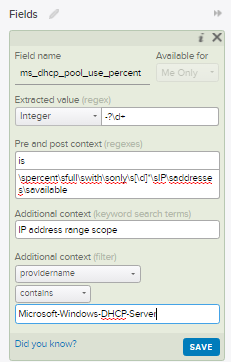
Extracted Value: For this use case you will be leaving this field alone as any changes will remove the type of "Integer". This can be problematic if you have numbers with a comma (1,000) but the engineering team is aware of it. For now, leave it as is.

Pre Context: This is a regex defining what comes before our desired value. In this example it is the word "is" from "is 85 percent full".

Post Context: The same as pre-context just for the regex after the value. It's important to make both the pre and post context detailed enough that they only apply to this exact context/event type. It's better to go a bit overboard with the regex than make it too simple. Just make sure to keep some room available in the text for the next item, keyword search terms....

Additional Context (keyword search terms): In this section you'll want to add in keywords that are found in the data outside of your regex. In this case my keywords match strings found before my pre-context regex. These are important as they help improve your query performance and lighten the load on your Log Insight Server.

Additional Context (filter): Why search through 2 billion events when you only need to search 100? That's exactly why you should also use filters to help narrow down where this Extracted Field will apply. Your users will thank your for keeping the performance on your Log Insight Server at peak efficiency!

Now that we have our Extracted Field defined we can modify our initial query to have an additional filter that says "ms_dhcp_pool_use_percent" (Name of our new Extracted Field) is greater that X%! This is demonstrated in the below screenshot where everything below 86% is dropped, and consequentially, would never be alerted on.


Lastly we need to define an alert off of our new query. Select the little red bell and select "Create Alert from Query"

Here we define the new alert properties for when our alert query returns a result.

And with that you're done!

Special thanks to my co-worker Simon Long for bringing up the need for this cool use case!


Monday, July 25, 2016

vCloud Director Logging

I was recently asked how to go about configuring the Log Insight Agent with VMware vCloud Director and thought that I would take the time to document it here for anyone else who is interested.

Logging in vCD is normally handled by log4j and configured by $VCLOUD_HOME/etc/log4j.properties.with the official KB located here. You should either use log4j OR the Log Insight Agent, but not both or you will have event duplication.

Log4j Configuration
First a quick overview of the log4j configuration.
1. Open $VCLOUD_HOME/etc/log4j.properties
2. Append "vcloud.system.syslog" to the rootLogger and make sure to not forget the comma before it
 3. At the bottom of the file go ahead and append the below 6 lines outlined in the KB making sure to change your target FQDN.
4. Unfortunately with vCD 5.x you also have to restart the vmware-vcd service for the changes to take effect. Hint: if you don't want to restart the services and take an outage you can continue reading and use the Log Insight Agent instead :)

Log Insight Agent
vCloud Director supports RHEL and CentOS so you only need to worry about the RPM install of the Log Insight Agent. First though, we need to do some prep work on the Log Insight Server.

1. Install the vCD Content Pack - On the Log Insight Server that you will be pointing your LI Agent at you will need to have the vCD Content Pack installed so the Agent Group is available. This is easily done via the Marketplace

2. Create your Agent Group - From the Administration window select Agents and then highlight the vCloud Director Cell Servers pre-defined Agent Group.
Next scroll to the bottom of the page and select Copy Template

3. Next you will need to define a filter that limits this collection to only vCD Cells. My test example here is very basic and limiting to hosts with a certain hostname prefix.
You can see in the bottom section of the agent group the actual files that will be collected by the agent.
By default the agent only collects info level logs but you can easily switch that to debug level logs if you desire. Feel free to check out my very basic sizing calculator on Github if you are curious of the impact of the additional logs. For now, just hit Save Agent Group to continue.

4. Now you are ready for the actual agent installation! You will need to copy the RPM to your vCD cells /tmp directory. The LI Agent will need to be installed and configured on every vCD Server.
Note: At some point after this step you will need to decide when to remove the log4j configuration and when to enable the Agent. I would personally recommend disabling log4j before installing the agent as short term you won't lose any events since the LI Agent will go through all the log files on the server and forward them on.

5. Install the agent via RPM

6.  If you downloaded the agent from the Log Insight server it is supposed to be forwarding to then you don't need to modify the liagent.ini file but if you downloaded it from my.vmware.com or another Log Insight Server you will need to update the target hostname.
If you want to be secure you can enable ssl and your /etc/liagent.ini file will look more like the below
Don't forget that you'll need certificates for SSL so follow the full official documentation available here 
 
At this point you should see that your agents are alive and sending data to your Log Insight Server