Showing posts with label Microsoft. Show all posts

Friday, October 14, 2016

Find DN of my user in AD

Sometimes you need to know what your DN is in Active Directory and want a quick way to find it without powershell scripts or AD related tools. This command is the best way I've see thus far to accomplish it:

whoami /fqdn

Wednesday, October 5, 2016

Getting Fancy with Log Insight Alerting (aka. Monitoring DHCP pools via logs)

Recently, I was asked about monitoring Microsoft DHCP IP Address Pools using Log Insight to alert when the pool was exhausted and DHCP requests were failing. There are a couple ways to do this, but I'd like to cover two as a demonstration of getting a bit fancy with your alert queries and it paying off big time!

First off, Microsoft DHCP Servers write their events to a log file - at the end of the day.... so we can parse that file for an Event ID of 14 to see when we ran out. This is easy to do as shown below using Event ID 11 (DHCP Renew) as an example. The regex is simple but unfortunately we get the information way too late!


Enter the Log Insight Agent's ability to read Windows Event Logs! As your DHCP Server starts running low on available addresses in a certain pool it starts to throw warnings in the System Event Log with an Event ID of 1376 that state what percent is currently used and how many addresses are still available.


It would be really cool if we could have Log Insight fire off an alert if these messages showed that we were above 90% used, right? But it's text... how do we do math on text in log messages? The good news is that not only can you accomplish this; it's easy to do!

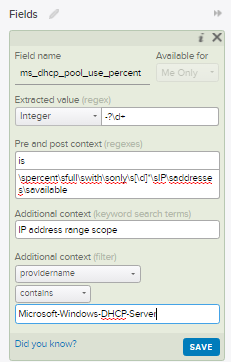
First off, we need to create an Extracted Field that allows us to treat the value of percentage used as an integer. Simply highlight the number and select "Extract Field"

Now you will have a dialog box on the right hand side that allows you to define what exactly makes this extracted field. Let's look into these options with a bit of detail...
Extracted Value: For this use case you will be leaving this field alone as any changes will remove the type of "Integer". This can be problematic if you have numbers with a comma (1,000) but the engineering team is aware of it. For now, leave it as is.

Pre Context: This is a regex defining what comes before our desired value. In this example it is the word "is" from "is 85 percent full".

Post Context: The same as pre-context just for the regex after the value. It's important to make both the pre and post context detailed enough that they only apply to this exact context/event type. It's better to go a bit overboard with the regex than make it too simple. Just make sure to keep some room available in the text for the next item, keyword search terms....

Additional Context (keyword search terms): In this section you'll want to add in keywords that are found in the data outside of your regex. In this case my keywords match strings found before my pre-context regex. These are important as they help improve your query performance and lighten the load on your Log Insight Server.

Additional Context (filter): Why search through 2 billion events when you only need to search 100? That's exactly why you should also use filters to help narrow down where this Extracted Field will apply. Your users will thank your for keeping the performance on your Log Insight Server at peak efficiency!

Now that we have our Extracted Field defined we can modify our initial query to have an additional filter that says "ms_dhcp_pool_use_percent" (Name of our new Extracted Field) is greater that X%! This is demonstrated in the below screenshot where everything below 86% is dropped, and consequentially, would never be alerted on.


Lastly we need to define an alert off of our new query. Select the little red bell and select "Create Alert from Query"

Here we define the new alert properties for when our alert query returns a result.

And with that you're done!

Special thanks to my co-worker Simon Long for bringing up the need for this cool use case!


Thursday, September 22, 2016

Corrupt Microsoft SQL Database Log in AlwaysOn High Availability Group (AAG)

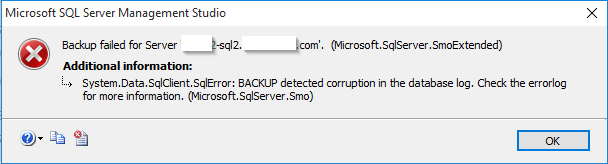
We recently ran into an issue with one of our environments where the Microsoft SQL Server experienced corruption in the database log. This issue is usually discovered when you attempt to create a new backup and it fails with the message "BACKUP detected corruption in the database log"


Resolving this issue is normally fairly easy (set the database from a Full Recovery Model to simple and then back again) but it gets a bit more complex when you database is replicated via an AlwaysOn High Availability Group. Here are the steps to fix it (assuming no other databases are in the AAG).

1. Remove Secondary Replica - First we need to stop replication to the secondary replica. To do this we are going to connect to the primary node in our cluster and right click on the SECONDARY replica. Then we select "Remove from Availability Group" and follow the wizard.


2. Remove Database from AAG - Next we need to remove the database from the AAG by right clicking on it under the Availability Databases folder and selecting "Remove Database from Availability Group"

At this point you should have your primary node as the only member of the AAG with no databases associated. At this point you are going to delete the database from the SECONDARY node. Your secondary server should now have no replicas, no availability databases and no database. 

3. Next we need to change the remaining copy of the database on our primary node from Full to a Simple Recovery Model by right clicking on the database and selecting properties > Options.

4. Next we need to do a full backup of the database.
5. Repeat the steps in #3 but in this case change it from simple back to the original Full Recovery Model.
6. Backup the database again.

Now we are ready to re-add the secondary replica

7. On the primary server right click on the Available Replicas folder and select "Add Replica..."
Next you will need to select the "Add Replica" button and will be prompted to connect to your secondary server.

After this you will want to configure your replica. In our case we have selected to have the secondary copy of the database as readable as well as enabling automatic failover.

In the next screen you will need to configure your sync preferences. We are using a Full sync which requires a file share accessible by both SQL Servers. Using this file share SQL will run a backup and place it on the remote share and the secondary node will restore the database from this initial backup. 

Follow the wizard and verify that everything passes

After this you can track the progress of the backup/restore/sync

With that you should have a working AlwaysOn Availability Group again!

Friday, September 16, 2016

FreeTDS and Microsoft SQL Server Windows Authentication - Part 1

I've been trying to get the Zenoss SQL Transaction Zenpack working so that we can use Zenoss to run SQL queries for specific monitoring purposes and ran into a few things that might be worth sharing.

Using tsql for troubleshooting

Zenoss, among many other tools uses pymssql to connect to your SQL Servers; and pymssql uses FreeTDS behind the scenes. If you can't get pymssql to work them you can go a layer deeper to see if you can find the issues. In my case I have the following configuration:

Fedora Server 23
freetds-0.95.81-1
pymssql-2.1.3

First off, FreeTDS uses a config file at /etc/freetds.conf that has a [Global] section and examples for configuring individual server types. This is important because you need to use TDS version 7.0+ for Windows Authentication to work.

If we try to connect using the diagnostic tool tsql (not to be confused with the language T-SQL) without changing the default TDS version or adding a server record in the config file our attempts will fail

To fix this you can either:
Change the Global value for "tds version" to be 7+ (sounds like a good idea to me if you only have MSSQL):

or you can add a server record for each Microsoft SQL Server and leave the global version less than 7.


The catch to second method is that when you do your queries you will have to call the name as shown in the config file (in this case us01-0-srs1) and you cannot use the FQDN or it will fail because it defaults back to the Global setting. This method also creates overhead in managing the list of MSSQL Servers in the freetds.conf file.


Either way, at this point you should have tsql being able to query your MSSQL Servers using Windows Authentication


Getting started with pymssql
To make sure that pymssql is working I threw together a quick bit of python that allows you to connect using Windows Authentication


It's basically a simplified version of the example on the pymssql web page, but will prove if pymssql and MSSQL Windows Authentication is working or not.

-------------BEGIN Code
import pymssql

print('Connecting to SQL')
conn = pymssql.connect(server='server.domain.com', user='DOMAIN\\username', password='Super Secret P@ssW0rds', database='master')

print('Creating cursor')
cursor = conn.cursor()

print('Executing query')
cursor.execute("""
SELECT MAX(req.total_elapsed_time) AS [total_time_ms]
FROM sys.dm_exec_requests AS req
WHERE req.sql_handle IS NOT NULL
""")

print('Fetching results')
row = cursor.fetchone()
while row:
    print(row[0])
    row = cursor.fetchone()

print('Closing connection')
conn.close
-------------END Code 

After filling in the details on your MSSQL Server you can simply run it and get the results


Part 2 will cover the Zenoss specific aspects of this...

Friday, July 8, 2016

Early Boot Windows Debugging - Part 2 - Kernel Debugging over Serial

This post is a continuation of Part 1; I think I shall call it "Help, my ntbtlog.txt isn't being written to disk and I'm flying blind"

Ok, now I need more data because I'm not getting anywhere. Fortunately Windows still has the option to log kernel debugging over serial. A feature I wasn't aware existed util today. That brings up the big question: how do I make that work on a VM and a physical device without a serial port?

First you need to enable virtual printers in VMware Workstation under Edit > Preferences. Without this enabled Workstation can't attach to named pipes.
Next we need to add a virtual serial port to our VM and tell it to output to named pipe
Next accept or change the named pipe (only replace the part "com_1" if you change it) and set it so that "This end is the server" and "The other end is an application".  This means that your VM is the server and you are going to attach an application to the named pipe.
With that out of the way you need to install the Windows Debugging Tools which are included in the Windows SDK. Link for Windows 10 is here. After installing the debugging toolset we need to launch a new kernel debug session.
Go File > Kernel Debug in WinDbg
Next select the COM tab and fill it out with the below settings but replacing the name of the port with your named pipe.
Hit Ok and you should see your debugger start and say it's "Waiting to reconnect..."
Even if you boot the VM at this point you won't get any information first we need to boot to the Windows Repair wizard, go to Troubleshoot > Command Prompt and enable debugging using bcdedit.

Commands: 
bcdedit /bootdebug {bootmgr} on (Windows Boot Manager)
bcdedit /bootdebug on (boot loader)
bcdedit /debug on (OS Kernel debugger)

At this point you can now reboot. In theory this should be all that you need for debugging but I've noticed that the information is still lacking.

Instead have it boot explicitly to debug mode

Now your debug should have much more valuable information, this time pointing to "IOINIT: Built-in driver \Driver\sacdrv failed to initialize with status - 0xc0000037"


Congratulations, you can now see what is actually going on in your OS and where the root of the issue is at more more clarity.


Early Boot Windows Debugging - Part 1 - Basics

I have a Windows Server 2012 VM that will not boot past the Windows splash screen but throws a BSOD with the error "SYSTEM_THREAD_EXCEPTION_NOT_HANDLED (NETIO.SYS). It's been a long while since working on troubleshooting Windows (I primarily use CentOS) but here's what I've found. I don't have the solution yet but I'm recording some tidbits that I found so I will have them later.

First a bit of preamble:

1. Advanced Boot Options - When you select "Enable Boot Logging" this is supposed to write a log file named ntbtlog.txt. However, in this particular case that never happens. This is presumably because it is before the appropriate driver is loaded to write log files. However with 2012 this is conjecture since the latest Microsoft documentation that I can find applies to Server 2000. Regardless of reason, it isn't captured in this instance.
2. This VM was originally running on ESXi but I have exported and OVF to my local VMware Workstation for my troubleshooting.
3. In the below operations I will be referencing "d:\" which is actually the c:\ of the server. It is referenced from the rescue command prompt as d:\ on my system.

Step 1: Boot to the command prompt from the troubleshooting menu in the Automatic Repair wizard
Step 2: Run a chkdsk to verify the filesystem is in working order. My scan came back with required repairs which it corrected. Subsequent scans come back clean.

Command: chkdsk d: /f
Step 2: Run sfc to verify that Windows is ok. This returns that everything is ok

Command: sfc /offbootdir=d:\ /offwindir=d:\Windows /scannow
Step 3 - Just for grins I also ran DISM (Deployment Image Servicing and Management) to check the integrity. It will throw a warning if you don't give it a scratch directory so I just created a temporary one on my drive. This also returns no found corruption.

Command: dism /image=d:\ /cleanup-image /scan-health /scratchdir=d:\temp
So far, so good... except it still won't boot up. I have an existing "twin" of this machine that should match it in most regards so just to be super certain I also run a manual hashing check on netio.sys and sacdrv.sys (more on that file later). The syntax for that is:

certutil.exe -hashfile drivers\netio.sys md5 (or sha1)

The number 1 cause of netio.sys BSOD are driver conflicts according to googling so I start down that road next. An export of all the drivers between the 2 systems shows that they are absolutely identical. Because that doesn't help me I start yanking out drivers to see if it will make a difference.

To get a list of non-Microsoft drivers I again use DISM and find that there are fortunately only 8 to worry about.

Command: dism /image:d:\ /scratchdir:d:\temp /get-drivers

I'm going to start removing drivers to see if that makes any difference. Again, using DISM I start by removing the vmxnet3 driver since it makes the most sense considering a netio.sys error.

Command: dism /image:d:\ /scratchdir:d:\tetmp /remove-driver:oem4.inf

After a reboot, no change. In 1 of my tests I also then proceed to remove the 7 remaining drivers, that also did nothing. Time to get more information.... Queue next post....